Improve React Native App Performance: A Production Guide
How to improve React Native app performance with profiling, rendering, startup time, memory leakage, network calls, and performance monitoring strategies.

Bharat Purohit
Mobile App & Technology Consultant
In this Article
In this Article
- Why Do React Native Apps Slow Down?
- 2Diagnose Before You Optimize: JS Thread, UI Thread, or Bridge/JSI?
- 3The New Architecture: What Fabric, TurboModules, and JSI Actually Change
- 4Rendering Performance: Lists, Re-renders, and Memoization
- 5Reduce React Native Startup Time and Bundle Overhead
- 6Optimize Memory, Images, and Network Performance
- 7React Native Performance Monitoring: Development vs Production
- 8Preventing Regressions: Performance Testing in CI
- 9Fix It In-House or Bring in a React Native Performance Specialist?
- 10FAQs on Improving React Native App Performance
Let's Build the Right Solution, Not Just Software.

Summarize with AI
Short on time? Get the key points instantly with AI.
 ChatGPT
 Perplexity
How to Improve React Native App Performance: A Complete Guide
Quick Answer: To improve React Native app performance, first profile a release build on a real device to find the bottleneck. Then fix what you find: reduce unnecessary re-renders, use FlatList or FlashList for long lists, optimize images, trim startup work, and cache API calls. Track startup time, frame rate, and crash rate in production.
A slow app can quickly frustrate users. Long loading times, delayed taps, laggy screens, or frequent crashes can make even a well-built React Native app feel unreliable.
For business owners and CTOs, performance is more than a technical concern. It affects user satisfaction, retention, and how people view your product. That makes it important to find the issues that actually slow your app down.
At NebulaTech, we believe the best way to improve React Native App performance is to start with the user experience and then work back to the technical cause. With our React Native development experience, we'll cover practical ways to find and fix common performance issues.
Why Do React Native Apps Slow Down?
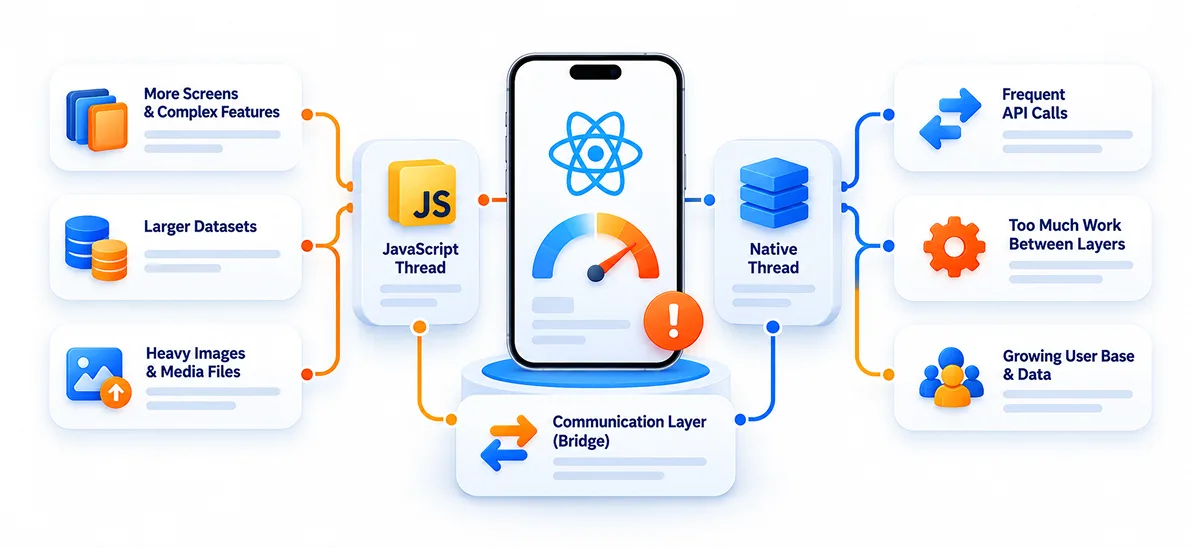
React Native apps can slow down for several reasons, but many performance issues come down to how JavaScript and native code communicate. React Native relies on the JavaScript thread, native thread, and the communication layer between them. When too much work moves between these layers, it can create delays and make the app feel less responsive.
The problem often grows as an app becomes more complex. More screens, larger datasets, heavy images, frequent API calls, and complex features can put extra pressure on performance. If you are planning a feature-rich app, these technical choices will also contribute to the overall React Native App Development Cost, making performance worth considering from the early stages. Something that feels fine during early development may become noticeably slower as the user base and amount of data grow.
For example, a product list with thousands of items or a social app handling high-resolution images can quickly expose performance problems. That's why improving performance is not just about making an app feel faster today. It also helps the app handle more users, data, and features without compromising the experience.
Diagnose Before You Optimize: JS Thread, UI Thread, or Bridge/JSI?
Before changing code, first identify where the slowdown is happening. A React Native app can feel slow because the JavaScript thread is busy, the UI thread is struggling to render frames, or too much work is happening between JavaScript and native code. Fixing the wrong layer can waste development time without improving the user experience.
| Area | What It Handles | Common Issues |
|---|---|---|
| JS Thread | Business logic, state, events, API processing | Heavy loops, large JSON parsing, unnecessary re-renders, synchronous work |
| UI Thread | View rendering, layout, gestures, animations | Complex layouts, dropped frames, expensive animations |
| Bridge / JSI | Communication between JavaScript and native code | Frequent data transfers, large payloads, repeated native calls |
The goal is simple: keep each thread free to do its job. For example, if the JS thread spends too long processing a large dataset while the user is scrolling, the app may start dropping frames. Similarly, expensive work during an animation can make the interface feel jerky.
Modern React Native apps using the New Architecture work differently from the older bridge-based model, but the basic principle remains: code that blocks important work can still hurt performance. That's why diagnosis should come before optimization.
Find the Bottleneck Before You Fix It
Performance problems are not always where you expect them to be. A screen may feel slow because of repeated re-renders, while the actual issue could be heavy JavaScript work, large API responses, or growing memory usage. That's why profiling should come before changing the code.
Based on our experience with React Native app performance optimization, we recommend starting with real performance data rather than assumptions. Test the exact screen or interaction where the slowdown occurs, then use tools such as React DevTools, Chrome DevTools, Perf Monitor, and network profiling to see what is happening under the hood.
Performance issues are not always obvious from reading the code. A component may look fine but re-render far more often than expected, or a function may run frequently enough to slow down the JS thread. Profiling tools can help reveal these patterns, but you need bigger changes across the app. In such cases, businesses should Hire React Native Developers with experience in performance optimization to investigate the underlying cause and implement the right fix.
Here are some practical ways to find the real bottleneck:
Compare JS and UI FPS: A drop in JS FPS can point to heavy JavaScript work, while low UI FPS may indicate rendering or layout issues.
Check unnecessary re-renders: Use React DevTools to identify components that update more often than they should.
Look for long JS tasks: Large loops, JSON processing, and synchronous operations can block interactions.
Test with realistic data: A screen that works well with 20 items may behave very differently with 2,000.
Watch memory over time: Increasing memory usage after repeated actions or navigation can indicate a memory leak.
Inspect network activity: Look for slow API responses, repeated requests, or unnecessarily large payloads.
Test on real devices: Simulator performance may not reflect how the app behaves on users' actual devices.
Measure after every major change: Confirm that an optimization has actually improved performance before moving to the next issue.
Our approach at NebulaTech is simple
Find the bottleneck, understand why it exists, and then fix it at the right level. This keeps performance optimization focused on changes that users can actually feel.

Is Your React Native App Slowing Down?
Identify the real performance bottlenecks and get a clear optimization roadmap based on profiling and real-world app behavior.
The New Architecture: What Fabric, TurboModules, and JSI Actually Change
If your React Native app is still using the old architecture, there is a bigger performance improvement to consider before making small code-level optimizations. The new architecture changes how JavaScript communicates with native code and how the app renders UI.
What Changes Under the New Architecture?
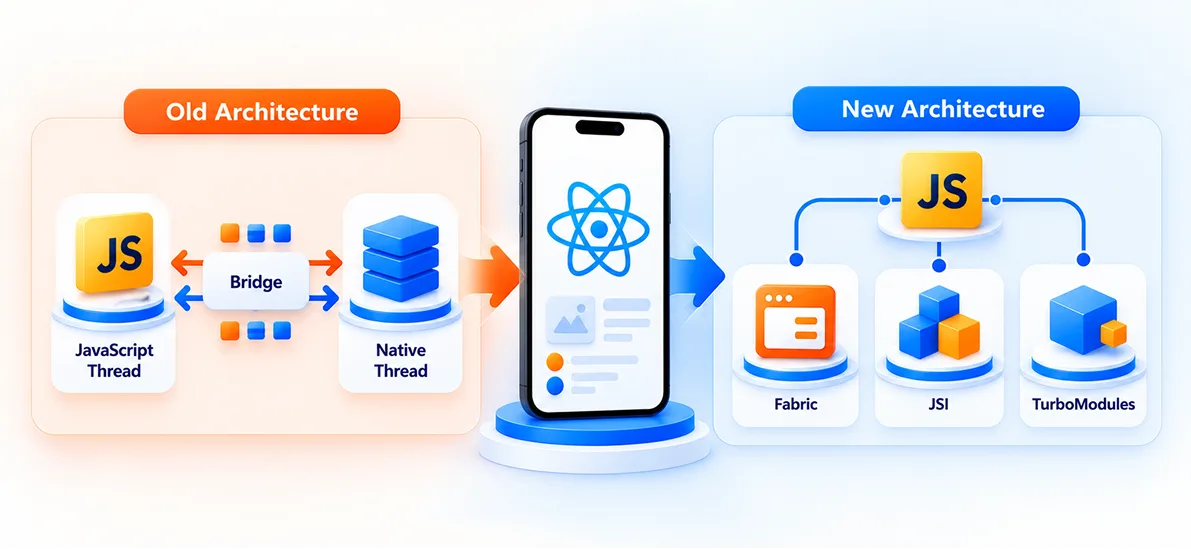
The older React Native architecture relied heavily on an asynchronous bridge that serialized data between JavaScript and native code. Frequent communication through this layer could add overhead, especially in apps with complex interactions, animations, or large amounts of data.
If your app is still using the older architecture, migrate to the New Architecture first before focusing on smaller performance optimizations. The New Architecture became the default in React Native 0.76 and is the only option from React Native 0.82 onward. If you're on React Native 0.81 or earlier, or an Expo SDK 54 project, check your migration path first, then upgrade to a current version.
The new architecture replaces this approach with three key pieces:
Fabric: The new rendering system that improves how React Native handles UI updates and layout. It gives JavaScript and native code a more direct way to coordinate UI work.
TurboModules: A newer system for native modules that supports lazy loading. Instead of loading every native module when the app starts, modules can be loaded when they are actually needed.
JSI (JavaScript Interface): A lower-level interface that allows JavaScript to communicate directly with C++ without relying on the old JSON serialization process. Libraries like Reanimated use JSI to move certain animation work to the UI thread.
The important point is that the new architecture does not automatically make every app fast. It removes some architectural bottlenecks, but poorly written code can still block threads, trigger unnecessary renders, or use too many resources.
If your project is on a recent React Native version and your dependencies support the new architecture, it is worth evaluating before spending significant time on micro-optimizations.
Before migrating, we recommend:
Check third-party library compatibility: Some older libraries may not fully support the New Architecture.
Update React Native if needed: Keep your project on a supported, recent version.
Check Expo compatibility: Expo projects should follow the New Architecture guidance for their SDK version.
Run your test suite: Pay particular attention to native modules, navigation, animations, and device-specific features.
Test on real devices: Compare startup time, scrolling, animations, memory use, and key user flows before and after migration.
The key is to treat the new architecture as a foundation, not a performance shortcut. Fabric, TurboModules, and JSI remove older communication bottlenecks, but your app can still slow down because of heavy rendering, unnecessary work, or inefficient code.
Rendering Performance: Lists, Re-renders, and Memoization
Rendering is one of the biggest areas where React Native apps can lose performance. Large lists, repeated component renders, and expensive calculations can put unnecessary work on the JavaScript thread. The result is often visible as slow loading, laggy scrolling, or delayed interactions.
Why ScrollView Doesn't Scale, and FlatList/FlashList Does
ScrollView is fine for short, simple content because it renders all its children at once. The problem starts when the list grows. Rendering hundreds of products, messages, or other items together increases both rendering work and memory usage.
For larger datasets, FlatList is a better starting point because it renders items as they become relevant instead of loading the entire list at once.
tsx
const ProductList = ({ products }) => {
  return (
    <FlatList
      data={products}
      keyExtractor={(item) => item.id.toString()}
      renderItem={({ item }) => (
        <ProductCard product={item} />
      )}
      initialNumToRender={8}
      maxToRenderPerBatch={5}
      windowSize={5}
    />
  );
};
If your app handles very large or frequently scrolling lists, FlashList can be worth considering. It uses view recycling to reuse existing list items rather than repeatedly creating and removing them. This can reduce rendering work and improve scrolling performance, especially for data-heavy screens.
tsx
import { FlashList } from '@shopify/flash-list';

const ProductList = ({ products }) => {
  return (
    <FlashList
      data={products}
      renderItem={({ item }) => (
        <ProductCard product={item} />
      )}
      estimatedItemSize={120}
    />
  );
};
For FlatList, getItemLayout can also make a meaningful difference when your rows have a fixed height. It tells React Native where each item sits without measuring every row individually.
tsx
const ITEM_HEIGHT = 120;

<FlatList
  data={products}
  renderItem={({ item }) => (
    <ProductCard product={item} />
  )}
  getItemLayout={(data, index) => ({
    length: ITEM_HEIGHT,
    offset: ITEM_HEIGHT * index,
    index,
  })}
/>
The right choice depends on your list size and UI. For a small list, ScrollView may be enough. For larger datasets, start with a tuned FlatList, and consider FlashList when list complexity or scale demands it.
Memoization Strategies for Reducing Unnecessary Re-Renders
A component does not need to re-render just because its parent did. Unnecessary renders add work to the JavaScript thread and can become especially noticeable during scrolling, animations, or frequent state updates.
React.memo can prevent a component from rendering when its relevant props have not changed:
tsx
const ProductCard = React.memo(({ product, onPress }) => {
  return (
    <Pressable onPress={() => onPress(product.id)}>
      <Image
        source={{ uri: product.image }}
        style={styles.image}
      />
      <View>
        <Text>{product.name}</Text>
        <Text>${product.price}</Text>
      </View>
    </Pressable>
  );
});
For functions passed to memoized components, useCallback can help keep the function reference stable:
For expensive calculations, useMemo can prevent the same work from being repeated unnecessarily:
js
const total = useMemo(() => calculateTotal(cart), [cart]);However, memoization is not something you should add everywhere. It also has a cost. Use it where components render frequently, expensive calculations repeat, or unstable props are causing avoidable renders.
A useful way to find these issues is to profile a real interaction with React DevTools. Look for components that render repeatedly during a single action and then check what is causing those updates. This gives you a much clearer target than adding memo, useCallback, or useMemo throughout the codebase without measuring first.
Reduce React Native Startup Time and Bundle Overhead
A slow startup often comes from one simple problem: the app is doing too much before it becomes usable. A large JavaScript bundle, too many dependencies, and unnecessary initialization can all increase the time users spend waiting.
Focus on keeping the startup workload small:
Reduce bundle size: Remove unused code and dependencies, and use dead-code elimination in production builds.
Lazy-load non-critical features: Load screens and modules when users need them instead of during app launch.
Audit dependencies: Review third-party packages regularly, especially those that add significant bundle weight.
Delay non-essential work: Move analytics, secondary API calls, and other initialization tasks out of the critical startup path where possible.
A useful rule is to optimize what happens before the first usable screen appears. The less work React Native has to do at launch, the sooner users can interact with the app.
Optimize Memory, Images, and Network Performance
Images, memory usage, and network activity can all affect how smoothly a React Native app performs. As the app grows, serving large images, keeping unnecessary data in memory, or making repeated API requests can create noticeable slowdowns.
For image and asset optimization, focus on reducing what the app needs to download and process:
Use appropriately sized images: Don't load a full-resolution image when a smaller version is enough for the screen.
Use modern formats: WebP can reduce image file sizes while maintaining good visual quality.
Lazy-load images: Load images when they are needed instead of loading everything at once.
Cache frequently used images: Avoid downloading the same assets repeatedly.
Use SVGs for scalable icons: They can be a good fit for icons that need to scale across screen sizes.
Bundle only required font weights: Extra font files add unnecessary asset weight.
Memory also needs attention, particularly in apps with long sessions or image-heavy screens. Watch for large images, growing arrays, unused objects, event listeners, and timers that remain active after they are no longer needed. Cleaning these up can prevent memory usage from steadily increasing over time.
Network performance is another important part of the experience. A screen can render quickly but still feel slow if users are waiting for an API response. Keep requests focused and avoid transferring data the screen does not need.
Reduce unnecessary API requests: Don't repeatedly request data that is already available.
Keep API responses focused: Return only the data required for the current use case.
Cache reusable data: Avoid fetching information again when it has not changed.
Monitor p95 and p99 latency: Looking beyond average response time helps identify delays affecting slower users or network conditions.
Handle weak connections: Make sure the app remains usable when users move between fast and unreliable networks.
The goal across all three areas is simple: load less, keep less in memory, and request less over the network. This helps React Native apps remain responsive as their features, data, and user base grow.
React Native Performance Monitoring: Development vs Production
Performance monitoring serves two different purposes. During development, you want detailed tools that help you find and fix problems in the code. In production, you need visibility into how the app actually performs across different devices, networks, and real user sessions.
Development-Only Tools: React DevTools Profiler
Development tools are useful when you can reproduce a performance issue and inspect it closely.
Flipper: Helps inspect logs, network requests, layouts, and other app behavior while developing. It can help you spot slow requests, excessive rendering, and other issues before release.
React DevTools Profiler: Shows which components render, how often they render, and how much time they take. This makes it useful for finding unnecessary re-renders and expensive components.
The important distinction is that these tools help you diagnose a problem in a controlled environment. They cannot tell you how the same app behaves for thousands of users on different devices.
Production Monitoring SDKs: Sentry, New Relic, and UXCam
Once the app is live, real-user data becomes much more valuable. Users may have older devices, slower connections, different OS versions, or usage patterns that you never reproduce during development.
Sentry: Tracks performance traces, errors, and user activity leading up to an issue. This can help connect a slow screen or interaction with what happened immediately before it.
New Relic: Provides production performance monitoring and real-user insights, helping teams identify slow interactions, network issues, and performance differences across devices.
UXCam: Adds session replay and user experience data, which can help you understand what users were doing when a performance issue occurred.
Production monitoring should go beyond simply checking whether an API or screen worked. Track metrics such as app startup time, screen load time, network latency, JS thread performance, and crash rates. You can also set alerts for meaningful regressions, such as a sudden increase in startup time after a release.
The best approach is to use development tools to find and fix known bottlenecks, then use production monitoring to discover issues that only appear in the real world.
Preventing Regressions: Performance Testing in CI
Performance problems can creep back into an app even after you have fixed them. A new feature may add an unnecessary re-render, increase bundle size, or make a frequently used screen slower. If you only test performance when users report an issue, these regressions can become much harder and more expensive to fix.
The better approach is to make performance checks part of your CI (Continuous Integration) workflow. This lets your team catch meaningful changes before they reach production.
Here are some practical checks:
Track startup time: Compare app launch performance between builds and flag significant increases.
Measure key interactions: Test important flows such as navigation, scrolling, and search to catch new delays.
Watch bundle size: Set a limit and flag builds that add unexpected weight.
Check render behavior: Use automated profiling to identify significant increases in renders for critical components.
Compare against a baseline: Keep a known performance baseline and investigate meaningful deviations rather than treating every small change as a failure.
Alert on production regressions: If startup time or another key metric rises significantly after a release, alert the team before the issue affects a larger portion of users.
CI testing cannot catch every React Native performance problem, especially issues that depend on specific devices or native behavior. But it creates an important safety net for common problems such as unnecessary re-renders, inefficient lists, growing bundle size, and slower interactions.
The goal is simple: don't wait for performance problems to reach users before checking whether a new release made the app slower.

Make Your React Native App Faster, Smoother, and More Scalable
From rendering and startup issues to memory, network, and architecture challenges, our React Native specialists help you turn performance problems into measurable improvements.
Fix It In-House or Bring in a React Native Performance Specialist?
The right choice depends on the problem, your team's expertise, and the time available. If issues are clear and limited, your in-house team can often handle them through profiling, better list rendering, memoization, bundle optimization, and asset management.
A specialist becomes useful when problems span the app, such as slow startup, JS thread bottlenecks, memory growth, network delays, or repeated rendering. They can also bring focused expertise when your team needs to improve performance without putting product development on hold.
Whichever route you take, the process remains the same: measure first, find the real bottleneck, and fix what affects users most. When that work also involves architecture or broader development changes, having the right technical partner can make the process easier.
That's where NebulaTech takes a consulting-first approach. Our React Native App Development Services start with understanding your app, business goals, and performance challenges before recommending a solution. We help you make focused improvements that keep your app fast, responsive, and ready to grow.
FAQs on Improving React Native App Performance
No. As of React Native 0.82, the New Architecture is the only architecture, so the question is whether your code uses it well. It removes bridge overhead but doesn't fix heavy re-renders, large assets, or blocking JS.