Power BI Financial Reporting: The Complete 2026 Guide
Learn how to build financial reports in Power BI from data modeling and DAX to CFO dashboards and FP&A forecasts. A practical guide for finance teams.

Manish Kumar
AI/ML & Data Engineer

In this Article
In this Article
- What Is Power BI Financial Reporting?
- 2Why Are Finance Teams Moving From Excel to Power BI?
- 3Power BI Financial Reporting: Step-by-Step Process
- 4How to Build Financial Statements in Power BI?
- 5Financial KPIs and Executive Dashboards CFOs Actually Track
- 6Budget vs. Actual and Variance Analysis in Power BI
- 7Power BI for FP&A and Financial Forecasting
- 8Using Power BI Copilot to Accelerate Financial Reporting
- 9How NebulaTech Approaches Power BI Financial Reporting
- 10FAQs
Let's Build the Right Solution, Not Just Software.

Summarize with AI
Short on time? Get the key points instantly with AI.
 ChatGPT
 Perplexity
Power BI Financial Reporting: A Practical Guide for Finance Teams
Quick Answer: Power BI financial reporting brings financial data from multiple sources into a single reporting environment. It helps finance teams build P&L statements, balance sheets, cash flow reports, KPIs, dashboards, and forecasts with less manual work and more consistent data.
Finance reporting can turn into a weekly cycle of chasing spreadsheets, checking formulas, and piecing together numbers from different systems. And just when you think the report is ready, someone asks for a different view.
Power BI financial reporting changes how teams do that work. Instead of relying on static spreadsheets, finance teams can bring data together, build interactive reports, and see key numbers without rebuilding the same report every time.
At NebulaTech, we see Power BI as more than a reporting tool. When financial data is structured around the questions a business needs to answer, reports become easier to use and more valuable for decision-making.
This guide explains how Power BI financial reporting works, how to build key financial reports, and what finance teams should evaluate before moving from spreadsheets to a more structured reporting environment.
What is Power BI Financial Reporting?
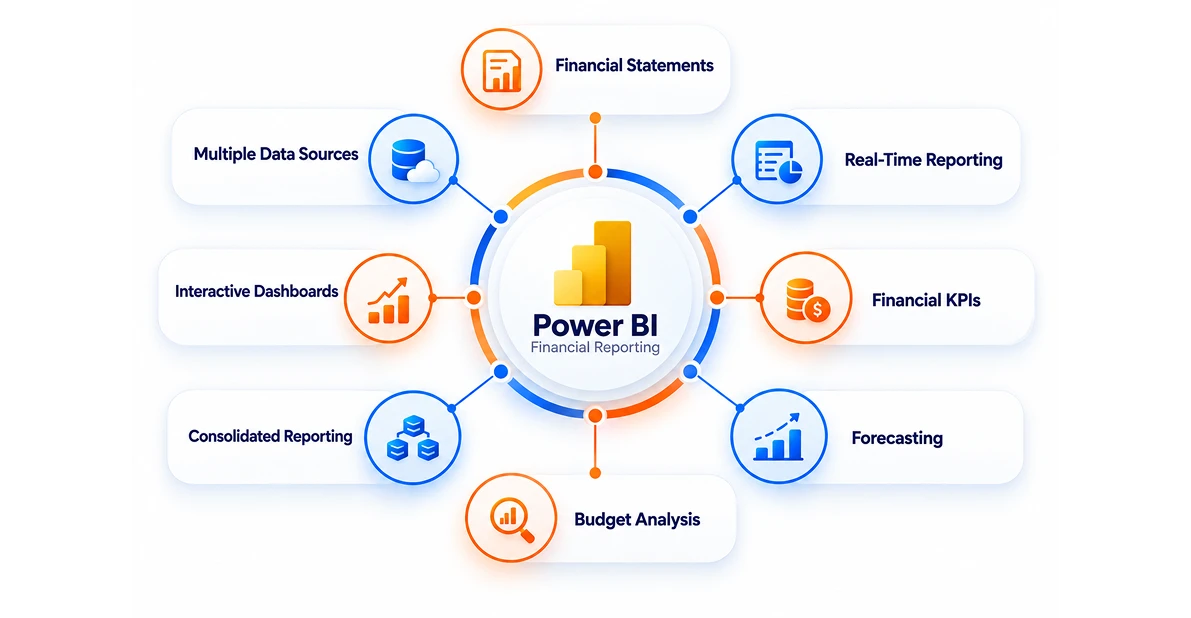
Power BI financial reporting is using Microsoft Power BI to collect, analyze, and present financial data in interactive reports and dashboards. It helps finance teams bring data from sources such as accounting systems, Excel files, and business applications into one view.
Unlike traditional reports that may need rebuilding with every update, Power BI connects to refreshed data and presents it through interactive visuals. Teams can drill into revenue, expenses, profit, cash flow, and other financial metrics without working through multiple spreadsheets.
For finance and FP&A teams, Power BI can support:
Financial statements: Build P&L, balance sheet, and cash flow reports.
Financial KPIs: Track revenue, margins, expenses, EBITDA, and liquidity.
Budget analysis: Compare actual results with budgets and identify variances.
Forecasting: Analyze trends and update financial forecasts more easily.
Consolidated reporting: Bring data from different entities, departments, or systems into a single view.
Interactive dashboards: Give finance leaders a clear view of business performance and let them explore the numbers behind it.
Why Are Finance Teams Moving From Excel to Power BI?
Excel has long been part of the finance team's daily workflow. It works well for calculations, quick analysis, financial models, and ad hoc reporting. The challenge begins when the same spreadsheets must also handle growing data volumes and recurring financial reports.
Power BI takes financial reporting a step further. It can bring data from multiple sources into one model, refresh it on a schedule, and turn it into interactive reports. Teams can filter results, drill into the numbers, and share a consistent view with stakeholders without rebuilding the report every time.
That does not mean finance teams need to choose one tool over the other. Excel and Power BI can work together smoothly. Excel can remain the go-to tool for detailed analysis and financial modeling, while Power BI handles recurring reporting, visualization, and dashboards.
Over the years, we've seen businesses turn to Power BI when financial reporting starts taking too much manual effort. We also see strong value in bringing data from different systems into one clear view. These are some of the top reasons finance teams are adding Power BI to their reporting workflow:
Bring data together: Connect financial data from Excel, ERP systems, databases, and other business tools.
Reduce manual reporting: Automate data refreshes and avoid rebuilding the same reports each period.
Explore financial data: Drill down from high-level numbers to understand revenue, expenses, and other metrics.
Create interactive dashboards: Give CFOs and stakeholders a shared view of financial performance.
Handle larger datasets: Analyze growing volumes of financial data more efficiently.
Keep Excel in the workflow: Continue using Excel for modeling and detailed analysis while Power BI handles reporting and visualization.
Typical Power BI Financial Reporting Architecture
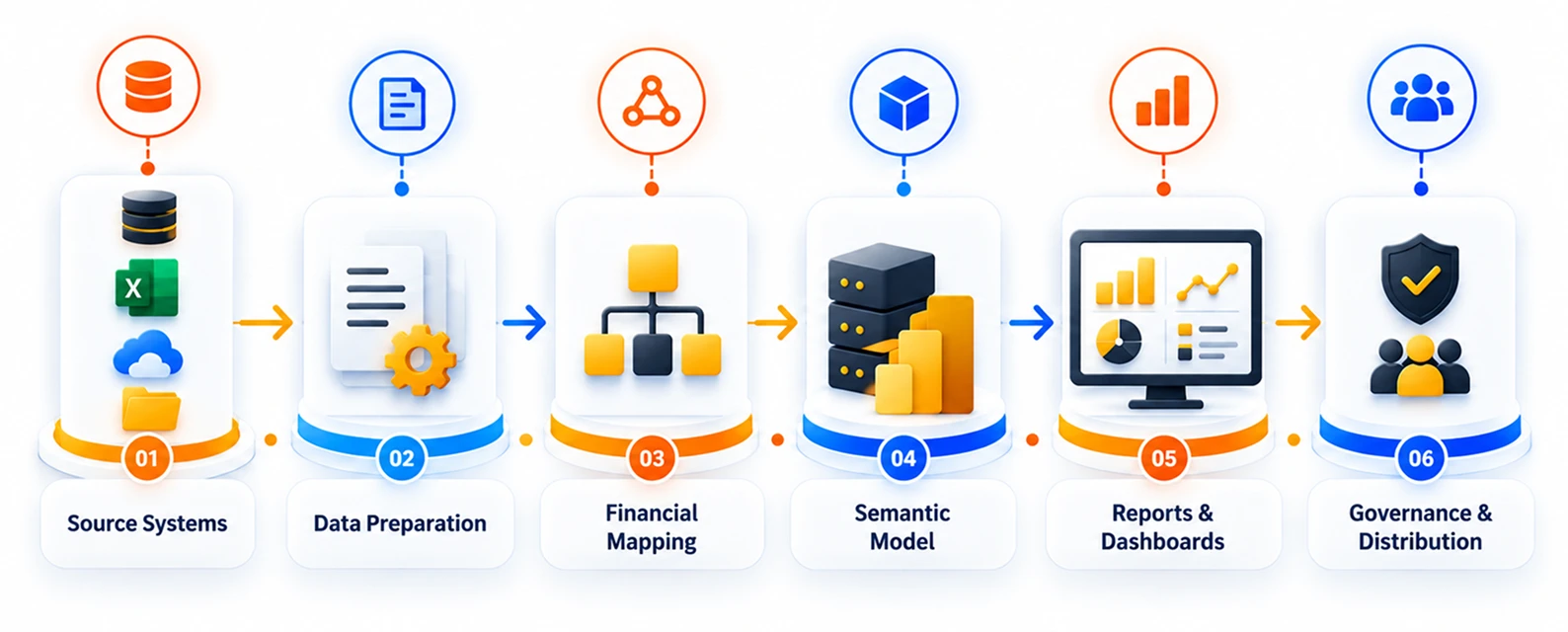
A strong Power BI financial reporting setup is more than a collection of dashboards. It connects financial data from different systems, prepares it for analysis, applies consistent financial logic, and then delivers the right information to the people who need it.
A typical architecture follows this flow:
Source Systems → Data Preparation → Financial Mapping → Semantic Model → Reports & Dashboards → Governance & Distribution
Source Systems
Financial data can come from ERP and accounting systems, Excel files, CRM platforms, databases, and other approved business systems. These sources provide the raw information needed for reporting.
Data Preparation
The required data is cleaned, standardized, and combined. This helps remove inconsistencies before the information enters the financial model.
Financial Mapping
Account codes, entities, reporting periods, currencies, and other dimensions are aligned to a common structure. This creates consistent definitions across financial reports.
Semantic Model
The prepared data is organized into a reusable model. Relationships, DAX measures, calculations, and other business logic are defined here so different reports can use the same financial definitions.
Reports and Dashboards
The model then powers P&L statements, balance sheets, cash flow reports, KPIs, variance analysis, and executive dashboards. Users can filter and drill into the information based on their reporting needs.
Governance and Distribution
The final layer covers data refreshes, access permissions, validation, security, and report publishing. This helps ensure that the right users have access to reliable financial information when they need it.
Power BI Financial Reporting: Step-by-Step Process
Building a financial report in Power BI is not just about creating charts. The quality of the final report depends on how well the financial data is connected, prepared, and structured first.
The process typically starts with bringing data from your accounting systems, Excel files, ERP platforms, or databases into Power BI. From there, the data is cleaned and shaped before being used for financial analysis and reporting.
Step 1: Connect Your Financial Data Sources to Power BI
Financial data rarely lives in one place. You may have transaction data in an ERP, budgets in Excel, customer data in a CRM, and other records in accounting software. Power BI can connect these sources and bring them into a single reporting environment.
Here are some common sources:
Excel spreadsheets for budgets, forecasts, and manually maintained data
Accounting and ERP systems such as SAP and other financial platforms
SQL databases that store financial and operational data
Cloud services and business applications
APIs and custom integrations for specific data sources
Once connected, Power BI can import the required tables and fields into your report. Depending on the source and connection type, data can also be refreshed automatically on a defined schedule.
Important note: Microsoft retired its native QuickBooks Online connector in March 2026. If QuickBooks Online is part of your reporting setup, use a current certified third-party connector or another supported integration path rather than relying on the retired connector.
The goal is to create a consistent source for reporting instead of repeatedly collecting numbers from separate files and systems.
Step 2: Shape and Clean Data With Power Query
Connected data is not always ready for financial reporting. Different systems may use different date formats, account names, currencies, or field structures. Power Query helps prepare that data before it reaches your financial model.
You can use it to:
Remove duplicate or invalid records
Standardize dates, currencies, and other formats
Rename and organize fields
Merge data from multiple sources
Filter out unnecessary records and columns
Create or transform columns needed for reporting
For financial reporting, this preparation step matters because small data inconsistencies can affect totals, comparisons, and financial statements.
Once the transformation steps are set up, Power Query can apply them again when new data is refreshed. That means the team does not have to repeat the same cleanup work every reporting period.
Step 3: Build a Financial Data Model
Once the data is clean, the next step is to structure it so Power BI understands how the different pieces of financial data relate to each other.
For financial reporting, a star schema is a common approach. A General Ledger table can sit at the center, connected to supporting tables such as the Chart of Accounts and a Calendar table. These relationships help Power BI correctly filter and organize transactions by account, date, department, or other dimensions.
A well-built model also makes it easier to:
Organize financial transactions and account categories
Filter reports by time period or account
Combine data from different business areas
Build consistent financial statements and KPIs
Add new reporting requirements without rebuilding the entire model
For example, linking the General Ledger to the Chart of Accounts allows Power BI to understand which transactions belong to revenue, COGS, operating expenses, assets, or liabilities. Connecting it to a Calendar table makes time-based analysis, such as monthly and yearly comparisons, much easier.
Step 4: Create DAX Measures for Financial Reporting
With the data model ready, DAX (Data Analysis Expressions) measures can be used to calculate the financial metrics that appear in your reports.
Instead of creating separate calculations throughout a report, you can build reusable measures for metrics such as:
Total Revenue
COGS
Gross Profit
Operating Expenses
Net Income
EBITDA
Year-to-Date (YTD) Revenue
Year-over-Year (YoY) Growth
For example, a simple revenue measure could look like:
Total Revenue = SUM(Transactions[Amount])
More advanced DAX measures can account for your Chart of Accounts, filter results based on selected periods, and calculate metrics such as YTD or prior-year performance.
The result is a financial model where key numbers update automatically as users filter the report by period, account, department, or other dimensions.
Step 5: Build and Publish the Financial Report
With your data model and DAX measures ready, you can start building the financial report in Power BI Desktop. Choose visuals that make financial information easy to understand, such as tables, charts, KPI cards, and variance visuals.
You can create separate report pages for areas such as:
P&L and revenue performance
Expenses and profitability
Cash flow and liquidity
Budget vs. actuals
Financial KPIs
For more complex reporting needs, working with experienced Power BI professionals can help ensure the model, calculations, dashboards, and deployment are set up correctly. Businesses looking for Data Visualization & BI Service can also get support with data integration, financial dashboards, DAX development, and ongoing Power BI reporting.
Once the report is ready, save it as a PBIX file and publish it to a workspace in Power BI Service. From there, authorized users can access and interact with the report based on the permissions you set.
You can also configure scheduled data refreshes, manage access, and share reports or dashboards with relevant stakeholders. This turns a report that sits on one computer into a shared financial reporting resource that teams can use regularly.
How to Build Financial Statements in Power BI?
Financial statements are where your Power BI financial data model starts becoming useful for everyday finance work. Instead of viewing transactions as rows of data, you can organize them into familiar statements that finance teams already use.
Power BI can support key financial statements such as P&L, balance sheet, and cash flow statements. You can also add comparisons, calculations, and interactive filters to help users explore the numbers behind each statement.
The exact setup depends on your data model, Chart of Accounts, and reporting requirements. Here's how each major financial statement can be built in Power BI.
P&L/Income Statement
A P&L or income statement shows how much a business earned, what it spent, and the resulting profit or loss over a specific period.
In Power BI, you can structure the report around your Chart of Accounts and use DAX measures to calculate revenue, COGS, operating expenses, gross profit, and net income. A well-structured P&L can also include budget or prior-period figures, making it easier to spot changes in financial performance.
For example, your P&L report can include:
Revenue and other income
COGS
Gross profit and gross margin
Operating expenses
Operating income
Interest and taxes
Net income
You can also add budget vs. actual figures, variance amounts, and percentage-based metrics to the same report. With interactive filters, users can view the P&L by month, quarter, year, department, entity, or other relevant dimensions.
Balance Sheet
A balance sheet gives you a snapshot of a company's financial position at a specific point in time. It brings together assets, liabilities, and equity so finance teams can see what the business owns, owes, and has built up over time.
Building one in Power BI starts with the right data structure. Unlike a P&L, balance sheet accounts are cumulative, so the report needs to account for opening balances and transactions up to the selected date.
A typical Power BI balance sheet can be organized into:
Assets: Fixed assets, cash, accounts receivable, and other current assets
Liabilities: Accounts payable, loans, taxes, and other obligations
Equity: Retained earnings, contributed capital, and current-year earnings
A mapping table can then organize these accounts into the correct reporting hierarchy. DAX measures calculate the balances and subtotals, while a Matrix visual presents them in a familiar financial statement format.
You can also add filters for reporting periods, entities, or departments and include supporting KPIs such as current ratio, quick ratio, and net asset trends.
Cash Flow Statement
A cash flow statement shows how cash and cash equivalents move in and out of a business during a given period. It helps finance teams understand whether cash is being generated or used across operating, investing, and financing activities.
In Power BI, the cash flow data may need some preparation before it fits into the financial model. For example, data may need to be unpivoted or reshaped so each cash flow category can be analyzed correctly.
Once the data is structured, DAX measures can calculate individual cash flow items as well as key subtotals, such as:
Cash from operating activities
Cash from investing activities
Cash from financing activities
Net change in cash
Opening and ending cash balances
The cash flow statement can then be presented through a Matrix or table visual alongside the P&L and balance sheet. With the right model, finance teams can also filter the statement by reporting period and refresh it as new financial data becomes available.
Consolidated Financial Statements
When a business operates across multiple entities, subsidiaries, regions, or currencies, financial reporting becomes more complex. Each entity may use different systems, account structures, currencies, or reporting periods. Consolidated financial statements bring this information together into a single view.
Power BI can support this process by combining financial data from multiple systems and applying a common structure. The key is to standardize the data before building the report.
A typical consolidation setup includes:
Unified Chart of Accounts: Map different account codes and categories to a common structure.
Entity mapping: Separate and compare results across subsidiaries, regions, or business units.
Currency conversion: Convert financial data into a common reporting currency while retaining the original values.
Intercompany eliminations: Identify and remove intercompany transactions to avoid overstating revenue, expenses, or balances.
Common reporting periods: Align fiscal calendars and reporting dates across entities.
Centralized data model: Bring the standardized data into a Power BI model for consolidated reporting.
Once the model is in place, finance teams can view consolidated revenue, expenses, profit, assets, liabilities, and cash flow, while still drilling down into individual entities or regions.

Simplify Your Financial Reporting With Power BI
Automate reporting, connect financial data, and gain real-time visibility into your business performance with tailored Power BI dashboards.
Data Governance and Security in Power BI Financial Reporting
Financial reports often contain sensitive business information, so building the dashboard is only one part of the job. A reliable Power BI environment also needs clear rules around who can access the data, how it is maintained, and how financial figures are validated.
Here are some important areas to consider:
Access control: Define who can view, publish, edit, and administer financial reports.
Row-level security: Restrict users to the entities, departments, or business units they are authorized to see.
Data validation: Reconcile Power BI figures with approved source-system data before reports are shared.
Refresh management: Set refresh schedules, monitor failures, and assign clear ownership for data refreshes.
Metric definitions: Keep consistent definitions for metrics such as revenue, EBITDA, operating expenses, and other KPIs.
Change management: Document updates to account mappings, DAX measures, calculations, and reporting logic.
Sensitive information: Review financial and employee data included in datasets and reports, and limit access where required.
Good governance helps finance teams trust the numbers they see while keeping sensitive financial information in the right hands. It also makes the reporting environment easier to maintain as the business and its reporting needs grow.
Financial KPIs and Executive Dashboards CFOs Actually Track
A financial dashboard should not try to show every number available in your data. CFOs need a focused view of the metrics that explain growth, profitability, cash position, and performance against plan.
Power BI can bring these KPIs together in one interactive dashboard. Users can monitor key numbers at a glance and drill into the details when something needs attention.
| Financial KPI | What It Shows | Why It Matters |
|---|---|---|
| Revenue | Income generated during a period | Tracks business growth and sales performance |
| Revenue Growth | Change in revenue over time | Shows whether growth is accelerating or slowing |
| Gross Profit | Revenue minus COGS | Shows profit before operating expenses |
| Gross Margin | Gross profit as a percentage of revenue | Helps track profitability and pricing performance |
| EBITDA | Operating earnings before interest, taxes, depreciation, and amortization | Provides a view of core operating performance |
| Operating Expenses | Costs involved in running the business | Helps monitor cost levels and spending trends |
| Operating Cash Flow | Cash generated from core operations | Shows the business's ability to generate cash |
| Current Ratio | Current assets compared with current liabilities | Provides a view of short-term liquidity |
| Budget vs. Actual | Actual results compared with planned results | Highlights areas performing above or below plan |
| AR / AP Aging | Outstanding receivables and payables | Helps monitor collections and upcoming obligations |
Revenue and Revenue Growth
Revenue shows the income generated by the business during a specific period. Tracking revenue alongside growth rates helps finance teams understand how sales are changing over time.
Power BI can break revenue down by month, quarter, year, product, region, or business unit, making it easier to identify important trends.
Gross Profit and Gross Margin
Gross profit shows what remains after deducting COGS from revenue. Gross margin expresses that profit as a percentage of revenue.
Tracking both gives finance teams a clearer view of profitability. They can also analyze margins across products, customers, or business units to see where performance is changing.
EBITDA and Operating Expenses
EBITDA provides a view of operating performance before interest, taxes, depreciation, and amortization. Looking at it alongside operating expenses helps CFOs understand how costs are affecting operating results.
Power BI can track these metrics over time and compare them with budgets or previous periods.
Cash Flow and Liquidity
Profit does not always tell the full financial story. Cash flow and liquidity metrics show whether a business can meet its short-term financial obligations.
Metrics such as operating cash flow, current ratio, accounts receivable, accounts payable, and cash balance can be brought together in an executive dashboard for a broader view of financial health.
Budget vs. Actual Performance
Comparing actual results with the budget helps finance teams identify where performance is above or below plan. Power BI can show the actual amount, budget, variance, and variance percentage together.
From there, users can drill down into the departments, accounts, or periods responsible for a significant variance.
Budget vs. Actual and Variance Analysis in Power BI
A budget tells you what the business planned to achieve. Actual results tell you what happened. Variance analysis connects the two, helping finance teams understand where performance differs from the plan and why.
Power BI can bring budget and actual data into the same report, making these differences easier to spot and investigate. Instead of looking at separate spreadsheets, teams can see the variance at a high level and drill down into the accounts, departments, or periods behind it.
Here are some common comparisons:
| Comparison Type | What It Shows | Example |
|---|---|---|
| Actual vs. Budget | How performance compares with the original plan | Expenses are 8% above budget |
| Actual vs. Forecast | How results compare with the latest financial expectation | Revenue is below the updated forecast |
| Actual vs. Prior Period | How performance has changed over time | Q2 revenue increased from Q1 |
| Actual vs. Prior Year | How the same period compares year over year | Q2 revenue is higher than Q2 last year |
Power BI can calculate both the variance amount and variance percentage and present them through tables, charts, and KPI cards. Finance teams can then drill into a large variance to find the accounts or business areas driving it.

Let's Build Smarter Financial Reports With Power BI
Book a call with NebulaTech's Power BI experts to discuss your financial reporting challenges and explore solutions tailored to your business.
Power BI for FP&A and Financial Forecasting
FP&A teams need to look beyond past performance. They also need to understand what could happen next. That means working with actuals, budgets, forecasts, and business assumptions while keeping the numbers consistent.
Power BI brings these inputs together in a shared financial model. It can combine data from ERP, accounting, CRM, HR, and other business systems, giving FP&A teams one place to analyze performance and build reports.
Power BI can support FP&A through:
Rolling forecasts: Compare updated forecasts with actual and budget figures.
Scenario planning: Model different revenue, cost, or growth assumptions.
Sensitivity analysis: See how changes in key assumptions could affect results.
Trend analysis: Identify patterns in historical financial performance.
Forecast vs. actual: Measure forecast accuracy and improve future projections.
Self-service analysis: Explore data by product, region, department, or other dimensions without creating new reports for every question.
Power BI does not replace FP&A models or financial judgment. It gives teams a connected data foundation to make planning and forecasting more efficient.
Using Power BI Copilot to Accelerate Financial Reporting
Copilot can help users explore report data and generate summaries of trends, changes, and selected visuals. This can reduce some of the effort involved in reviewing a report and preparing an initial narrative.
The May 2026 update added Copilot summary shortcuts, allowing users to quickly generate report-wide or visual-level summaries. These can highlight key trends, changes, and drivers without manually reviewing every chart.
For financial reporting, Copilot can help teams:
Summarize reports: Create quick overviews for leadership.
Explain changes: Explore trends and differences in financial data.
Ask questions: Get answers about report data using natural language.
Create narratives: Turn financial insights into easy-to-read summaries.
We expect capabilities like these to play a bigger role in financial reporting as Power BI continues to add AI features. Our focus at NebulaTech is to help businesses prepare for that shift, not just adopt the features available today. By building clean data models, reliable DAX measures, and well-structured semantic models, we help teams get more value.
When you hire Power BI Developers from NebulaTech, you get more than dashboard development. We build the underlying data models, DAX measures, and reporting workflows needed to make Copilot useful today and keep your financial reporting environment ready for what comes next.
How NebulaTech Approaches Power BI Financial Reporting
At NebulaTech, we take a consulting-first approach to Power BI financial reporting. We start by understanding how finance teams work today, what they need to see, and which decisions the reports should support.
This approach helps us keep Power BI projects focused on the problems they need to solve. We establish the right direction first, then build the reporting solution around it.
Clarity Before Development
Understand the reporting goals, business needs, and challenges before deciding what to build.
Consulting Before Coding
Review source systems, data structures, account mappings, and reporting definitions to identify the right approach.
Technology With Purpose
Choose the right data preparation, integration, modeling, and reporting methods based on the project requirements.
Business Outcomes That Matter
Focus on consistent reporting, easier analysis, and better access to financial insights rather than simply delivering more dashboards.
FAQs
Not necessarily. Excel remains useful for financial modeling, calculations, ad hoc analysis, and working with smaller datasets. Power BI is better suited to recurring reports, interactive dashboards, data visualization, and sharing financial insights. Using both together can give finance teams a more flexible workflow.